

Introduction: Why AI is Changing After Effects Editing
If you’ve spent hours staring at a timeline in After Effects, you know the frustration: long rendering times, endless keyframes, and the repetitive grind of masking or rotoscoping. Even experienced editors sometimes feel like they’re stuck in a loop, spending more time on technical tasks than actual creative storytelling.
That’s exactly why After Effects AI Tools are becoming game-changers. These smart tools aren’t here to replace your creativity-they’re here to handle the tedious stuff. From automating background removal to smoothing out animations, AI can take hours of repetitive work off your plate. That means you can focus on the parts that really matter: designing, experimenting, and bringing your vision to life.
Imagine finishing a complex sequence in a fraction of the time it normally takes, or experimenting with effects you’d normally avoid because they’re too time-consuming. That’s the power of integrating AI into After Effects-it speeds up workflows, reduces frustration, and opens up creative possibilities that were previously out of reach.
Table of Contents
What Are After Effects AI Tools?
At their core, After Effects AI Tools are software features or plugins that use artificial intelligence to handle tasks that would normally eat up hours of your editing time. Think of them as your virtual assistant inside After Effects-working quietly in the background to take care of repetitive, time-consuming chores so you can focus on the creative side of things.
For example, AI can automatically remove unwanted objects from a video, track motion with precision, or even predict keyframes for smooth animations. Instead of painstakingly adjusting every frame by hand, these tools analyze your footage and suggest or execute actions that match your editing intent.
But it’s not just about speed. AI also enhances efficiency by minimizing errors-no more misaligned masks or jittery motion tracking-and allows you to experiment with complex effects you might otherwise avoid. By freeing you from technical drudgery, these tools essentially give you more creative bandwidth, letting your ideas flow without interruption.
Imagine being able to try out a new animation style, apply consistent effects across multiple clips, or clean up old footage in minutes instead of hours. That’s the real value of AI in After Effects: it transforms tedious, mechanical work into a smoother, smarter, and more enjoyable editing experience.
Adobe Sensei: The Built-In AI Powerhouse
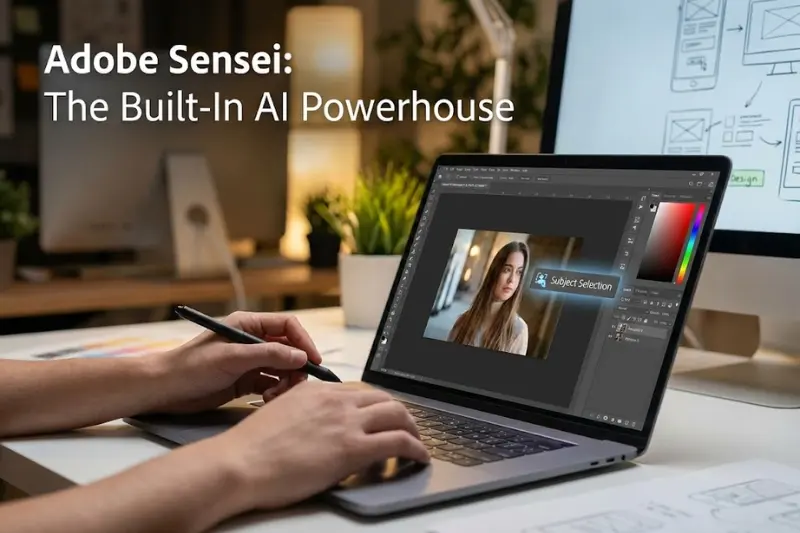
If you’re already using After Effects, there’s a good chance you’ve interacted with Adobe Sensei without even realizing it. This built-in AI engine powers many of After Effects’ smartest features, and it’s designed to save editors both time and frustration.
Take Content-Aware Fill, for instance. Traditionally, removing an unwanted object from a video meant painstakingly cloning and masking frame by frame-a process that could take hours. With Sensei, you just select the object, hit “Fill,” and the AI analyzes surrounding pixels to seamlessly remove it across the clip. In real-life projects, editors have reported cutting rotoscoping time from several hours to mere minutes, especially on complex shots with moving subjects.
Another standout is Auto-Reframing, which automatically adjusts your compositions for different aspect ratios. Imagine creating a horizontal video for YouTube and needing a vertical version for Instagram or TikTok. Instead of manually repositioning each element, Sensei tracks key objects and intelligently keeps them centered, letting you deliver multiple formats effortlessly.
And let’s not forget Smart Masking, which simplifies isolating subjects from backgrounds. Whether it’s a talking head or a moving character, Sensei can generate masks that adapt over time, drastically reducing manual corrections.
The takeaway? Adobe Sensei doesn’t replace your creative decisions-it handles the repetitive, time-consuming work so you can focus on what really matters: storytelling, design, and experimenting with bold effects. Have you ever finished a project faster than expected thanks to Sensei? That’s the kind of magic these AI tools bring to your workflow.
May be you like it:
Top Jobs for Women in Tech – Careers That Empower
AI Tools for Lit Review – Streamline Your Research Fast
The Teacher’s Guide – Tips, Tools & Strategies for Success
Software Testing Review – Tools, Tips & Best Practices
Runway ML: Versatile AI for Motion and Effects
Runway ML has quickly become a favorite among editors who want to push the limits of creativity without getting bogged down by repetitive tasks. Unlike some tools that focus on a single feature, Runway ML is versatile, offering everything from background removal to motion tracking and even style transfers.
For example, say you’re editing a video with a busy background that distracts from your subject. Instead of manually masking and isolating each frame, Runway’s AI can remove the background in seconds, leaving you with a clean layer ready for compositing. Similarly, its motion tracking tools let you attach graphics, text, or effects to moving objects with surprising precision, saving you countless hours of painstaking adjustments.
Style transfer is another impressive feature. Imagine applying a hand-painted look or a cinematic effect to your entire clip without redrawing each frame. Runway’s AI can analyze your footage and propagate the style consistently across the sequence-a huge advantage for marketing videos, animations, or creative reels.
Tips for integrating Runway ML with After Effects workflows:
- Start by exporting your clip from After Effects, apply the AI-driven effect in Runway, and then re-import the enhanced footage.
- For multi-layered compositions, consider batch processing similar clips to maintain consistent style and efficiency.
- Always review AI outputs frame by frame, especially for fast-moving subjects, to catch minor errors that might slip through.
By combining Runway ML with After Effects, editors gain a hybrid workflow: human creativity guided by AI efficiency. It’s like having a smart assistant who understands your vision and executes the tedious parts flawlessly.
Ebsynth: AI-Powered Style Transfer
If you’ve ever wanted to turn ordinary footage into something visually striking without spending hours painting or animating frame by frame, Ebsynth is a tool you’ll want in your arsenal. This AI-powered software specializes in style transfer, taking your live-action footage and applying artistic looks-like hand-painted animation, comic-book effects, or cinematic textures-across entire sequences.
Here’s how it works: you provide a keyframe or reference image with the desired style, and Ebsynth analyzes the video to propagate that look to all frames. The result? A consistent, polished effect without the painstaking manual work traditionally required in animation or motion graphics.
Real-world use cases:
- Concept reels: Designers and filmmakers can quickly visualize ideas in a stylized format to pitch projects without hiring a full animation team.
- Marketing videos: Brands can transform ordinary footage into eye-catching, shareable content with minimal effort.
- Animation projects: Independent animators can experiment with unique styles or create motion sequences that would normally take days or weeks.
Ebsynth doesn’t replace your creativity-it amplifies it. Instead of spending hours redrawing every frame, you can focus on refining the artistic direction and experimenting with bold styles. It’s the perfect example of how After Effects AI Tools allow editors to work smarter, not harder.
DeepMotion Animate 3D: AI-Driven Character Animation
Animating characters has always been one of the most time-consuming parts of video production. That’s where DeepMotion Animate 3D comes in. This AI-powered tool can take real-world motion-like a person walking, gesturing, or performing an action-and map it directly onto 2D or 3D characters in After Effects.
Imagine filming yourself doing a simple movement with a webcam or smartphone. DeepMotion analyzes the motion and translates it into smooth, lifelike animations on your digital character. No tedious frame-by-frame keyframing, no manual adjustments-just realistic motion ready to drop into your project.
Example scenarios where DeepMotion shines:
- YouTubers: Quickly animate avatars or digital hosts to make content more engaging without hiring a motion capture team.
- Indie animators: Small studios or solo creators can produce polished animations faster, making ambitious projects feasible.
- Game developers: Test character movements or create cinematic cutscenes without expensive motion capture setups.
DeepMotion doesn’t replace the animator’s creative choices-it enhances them. By handling the technical mapping of motion, it gives creators the freedom to focus on performance, timing, and storytelling.
Have you ever wished your characters could move exactly like your live reference footage without hours of tweaking? DeepMotion makes that dream a reality, bringing your ideas to life faster than ever.
Pixop: AI Video Enhancement and Restoration
Sometimes the biggest challenge isn’t creating new footage-it’s making old or low-quality clips look professional. That’s where Pixop comes in. This AI-powered tool specializes in upscaling, denoising, and restoring footage, turning grainy, compressed, or outdated videos into clean, high-quality material ready for After Effects projects.
For instance, imagine you’re working on a marketing video and need to include archival footage. Traditionally, cleaning up old clips meant tedious frame-by-frame editing or accepting a drop in quality. With Pixop, AI analyzes the footage, removes noise, enhances details, and upscales resolution-all automatically. The result is a polished clip that integrates seamlessly with modern content.
Practical workflow benefits include:
- Saving hours on restoring old corporate or historical videos.
- Preparing compressed social media clips for professional editing without quality loss.
- Quickly improving footage for client projects where time and quality are both critical.
Pixop doesn’t just make videos look better; it streamlines your workflow by eliminating repetitive restoration tasks. In other words, you spend less time fixing problems and more time focusing on creative storytelling.
May be you like it:
How to Write a Winning Resume for Lab Tech Roles
AI Rap Name Generator – Create Your Unique Stage Name
How to Tour Guide – Skills, Tips & Secrets for Great Tours
Top Software Therapy Reviews – Find the Best Tools Today
Tips for Smoothly Integrating AI Tools
AI tools in After Effects are incredibly powerful, but jumping in without a strategy can actually slow you down. To make the most of them-and avoid frustration-here are some practical tips for integrating AI into your workflow.
- Start Small
Don’t try to overhaul your entire editing process at once. Pick one repetitive task-like background removal or keyframe prediction-and test an AI tool there. This way, you get a feel for its strengths and limitations without disrupting your projects. - Combine Tools Strategically
Some tasks benefit from multiple AI solutions. For instance, you might use Adobe Sensei for content-aware fills and Runway ML for background replacements. By combining tools thoughtfully, you can achieve results faster while keeping quality high. - Always Review AI Output
AI can handle a lot, but it’s not perfect. Check frames carefully for minor mistakes, especially on fast-moving subjects or complex effects. A few quick adjustments now can prevent hours of rework later. - Stay Updated
AI tools evolve quickly, with new features and optimizations released regularly. Keeping your software up to date ensures you’re using the most efficient workflows and getting the best results. - Avoid Overreliance
AI is a helper, not a replacement for your creative judgment. Don’t let automation make you complacent-maintain control over artistic decisions to preserve your style and vision.
By following these tips, you can seamlessly integrate AI into After Effects, speeding up tedious processes without compromising creativity. Think of AI as your editing assistant: it handles the grunt work while you focus on storytelling, design, and experimentation.
Common Mistakes to Avoid
AI tools in After Effects are game-changers, but even the most experienced editors can stumble if they’re not careful. Here are some common pitfalls-and how to avoid them:
- Blindly Trusting AI Outputs
AI can do a lot, but it’s not perfect. Whether it’s motion tracking, background removal, or style transfer, small errors can slip through. Always review AI-generated results frame by frame. A few minutes of double-checking now can save hours of rework later. - Over-Processing Clips
It’s tempting to stack multiple AI effects on a single clip, thinking more is better. In reality, over-processing can create unnatural visuals or degrade quality. Use AI selectively-let it enhance your footage, not overwhelm it. - Using AI Where Traditional Editing Might Be Faster
Sometimes, especially for short clips or simple edits, manually adjusting a few keyframes is actually quicker than running AI. Assess each task critically and choose the method that balances speed with control.
By keeping these mistakes in mind, you can maximize the benefits of After Effects AI Tools without getting tripped up. AI should be your time-saving assistant, not a source of frustration. Have you ever wasted time fixing AI outputs? Being mindful of these common pitfalls can prevent that from happening.
FAQs
What are After Effects AI Tools?
They are software features or plugins that use AI to automate repetitive editing tasks, like rotoscoping, motion tracking, or style transfer, saving time and boosting creativity.
Can AI replace human creativity in After Effects?
No. AI handles tedious tasks, but your creative decisions-timing, design, storytelling-still drive the final result. AI is a time-saving assistant, not a replacement.
Which AI tool is best for background removal?
Runway ML and Adobe Sensei’s Content-Aware Fill are top choices. Both can isolate subjects quickly, but reviewing outputs is essential to catch minor errors.
Are AI tools suitable for old or low-quality footage?
Yes. Tools like Pixop can denoise, upscale, and restore archival or compressed footage, making it usable in modern projects without extensive manual editing.
How should I integrate AI into my workflow?
Start small with one task, combine tools strategically, review AI outputs, and avoid overreliance. Gradually expand usage as you gain confidence and efficiency.
Conclusion and Takeaways
AI tools have transformed the way we approach After Effects editing, but they’re most powerful when used alongside human creativity. After Effects AI Tools aren’t here to replace your vision-they’re here to handle repetitive, time-consuming tasks so you can focus on storytelling, design, and experimentation.
The key takeaway? Find the right balance. Experiment with different AI tools, see which ones genuinely speed up your workflow, and combine them thoughtfully with your own creative process. Start small, review outputs carefully, and gradually expand how much you rely on AI-this approach ensures efficiency without sacrificing quality.
Think about your current projects: which tasks could be automated, and which still need your personal touch? Which AI tool might save you the most time while boosting your creativity? Reflecting on these questions can help you build a smarter, faster, and more enjoyable editing workflow.
May be you like it:
Armour Tech Pavers – Durable & Stylish Outdoor Solutions
Top AI Tools Transforming Work in 2025
Fishing Guides Lake Conroe TX – Expert Tips & Local Trips
